GenoPro Setup
Installing GenoPro is easy, no database or advanced computer knowledge is
required. Here are the easy steps to download and install GenoPro.
1. Downloading file InstallGenoPro.exe
Click on the link
https://genopro.com/InstallGenoPro.exe. You will see a dialog
asking to run or save the file. You are
welcome to save the file on your computer if you wish to install GenoPro
later, or keep a backup, however we recommend to click on the Run
button (your browser may display Open instead of Run).
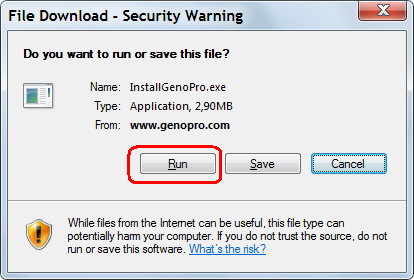
For your protection, Internet
Explorer displays a security warning when downloading a file from the
Internet. The security warning is a reminder that downloading a file
from an un-trusted source can potentially harm your computer.
Rest assured,
GenoPro is safe to install.
Once you have clicked on the Run button, your web browser
will stat downloading file InstallGenoPro.exe. The file
InstallGenoPro.exe about 3 MB, so it should take about 5 seconds to download
on a modem cable, and perhaps a full minute if you have a dialup Internet
connection.
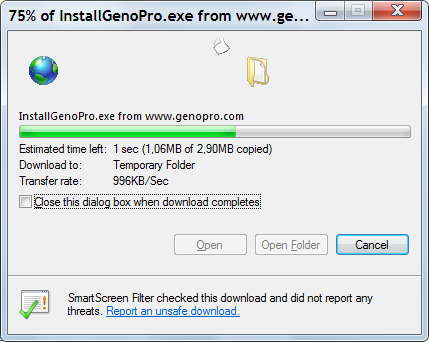
Download in Progress
After the file has been successfully downloaded, the installation should
start.
2. Installing GenoPro
At this point, you have downloaded GenoPro and now ready to install it on
your computer. If you have saved file InstallGenoPro.exe on your disk
or received a CD of GenoPro, just double-click on file InstallGenoPro.exe.
You should get the following dialog:
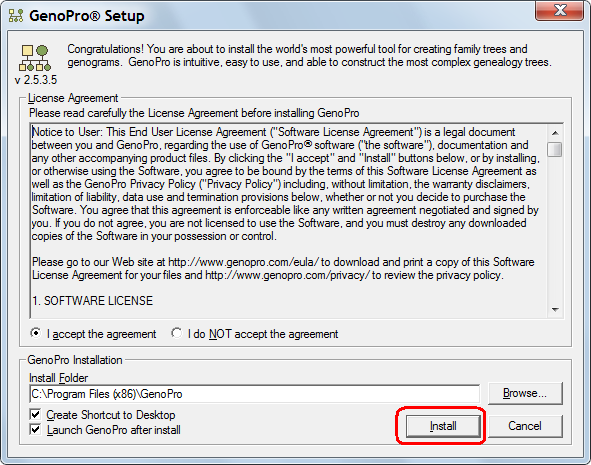
a) Click on the button I accept the agreement if you agree
with the License Agreement.
b) Click on the Install button.
The installer will copy all the files into your hard disk and create a
shortcut in the Start menu, and optionally a shortcut on your desktop.
You can install as many times as you wish; each installation of GenoPro
simply updates the necessary files from its previous installation.
There is no danger of loosing your family tree while installing or
upgrading, because GenoPro only overwrite the files it has written during a
previous installation.
You may have multiple versions of GenoPro installed on the same computer.
Just type the folder (path) where you want GenoPro to be installed.
| | | |
You may get an error while installing if GenoPro is already running on your computer.
If this is the case, close all running instances of GenoPro and click on the Retry button.
As a safety measure, Windows does not allow updating an application while running,
the same as you do not change a tire while a car is moving.
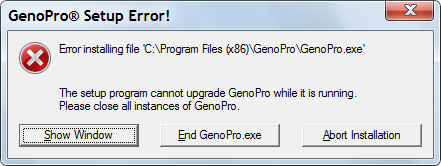
If you still get this error after closing all running instances of GenoPro, try rebooting the machine. It is possible an instance of GenoPro may be still be running
without being visible on the desktop.
| | | | |
You have now installed GenoPro. You will see the
Registration dialog to optionally request a
free evaluation key. To get started, we invite you to read our introduction
Get Started Building My Family Tree.
Download updated Report Templates
The community is constantly updating reports with new templates that are 100% free on the Report Generator Forum.
GenoPro Installation FAQ
The installation of GenoPro is quite easy. If you are reading this
page, it is likely you have successfully installed GenoPro.
Q: Is there a Macintosh or Linux version of GenoPro?
A: No. GenoPro has chosen to improve its current version on the
Windows platform rather than producing multiple versions of GenoPro for
multiple operating systems.
Many customer have been able to run GenoPro on
Marcintosh and Linux but it's not supported.
Q: On what versions of Windows does GenoPro run?
A: GenoPro has been tested on Windows 95, Windows 98, Windows ME,
Windows NT 4.0, Windows 2000, Windows XP, Windows Vista, Windows 7 and Windows 10.
Q: What is the minimum hardware to run GenoPro?
A: GenoPro was tested on a 386 with 4 MB of RAM running Windows 95.
Of course, this is not the optimal hardware, but you can build your
genealogy tree with such a computer. It is highly recommended to run GenoPro
on Windows XP / Windows 7 to edit large genealogy trees.
Q: What are the minimum files required to run GenoPro?
A: You only need one file: GenoPro.exe (8 MB). For instance,
if you want to distribute your genealogy tree on a CD, all you need to put
on the CD is GenoPro.exe and your genealogy tree. The installer include
sample files and uninstall information that are not required to run GenoPro.
Q: I want to make a CD-ROM with my family tree on it, what should I
do?
A: Make sure you copy
InstallGenoPro.exe on the CD.
Tip: You can generate an HTML report
in the same folder as you copied your genealogy tree (.gno file). The
HTML report gives detailed information about each individual and family and
does not require GenoPro to view and/or print your family data.
Q: Can I make GenoPro available for download on my web site?
A: Yes. If you have your own downloading site, you are welcome to do
so. If you want, you can copy the HTML pages from GenoPro.com site and
customize them to your liking or translate them to your own language. It is
preferable that you link your Web page to
https://genopro.com/InstallGenoPro.exe to allow people to always
download the latest version of GenoPro. If you make a copy of
InstallGenoPro.exe to your web site, then you will have to periodically
update the file when a newer version is available.
Upgrading GenoPro
GenoPro has a built-in feature to make it easy to upgrade. Use the "Check
for Update" dialog located in the Help menu to determine if there is a
newer version available. Simply click on the "Download" button to
download the most recent version of GenoPro. The upgrade is a one-click
process and it is 100% safe for all your files, including your .gno files
and their pictures.
Q: I created a large family tree. Is is possible that a newer version
will overwrite it?
A: Never. The Setup program only upgrades the GenoPro application
files.
Q: Will GenoPro or future versions read my family tree created by earlier
versions of GenoPro, such as GenoPro 2011, 2007 or GenoPro version 1.x?
A: You bet! The upgrade to GenoPro will be as easy as any
other upgrade of GenoPro.
Uninstalling GenoPro
Q: How do I uninstall GenoPro?
A: You may uninstall GenoPro from the Control Panel (Start
-> Settings -> Control Panel -> Add/Remove Programs -> Uninstall -> GenoPro
-> Remove) or by double-clicking on the file Uninstall.exe
located in the folder where you installed GenoPro (typically
C:\Program Files\GenoPro\).
Q: Does uninstalling GenoPro delete my genealogy files?
A: No. When you install GenoPro, the installer creates a log of all
the files it installed on your machine. When you uninstall GenoPro,
the uninstaller simply opens the log and deletes each file installed by
GenoPro, including the shortcuts in the Start menu and Desktop.
Installation Problems
Q: I get a message about a missing MFC42.DLL or (missing
MFC42.DLL:6453)
A: Your machine is missing a system library or has an old version. This is a rare case as
it happens in less than 1% of all machines. Download
https://genopro.com/InstallMfcDLL.exe and double-click on it. The
program InstallMfcDLL.exe will install mfc42.dll and msvcrt.dll into the
Windows system directory (folder).
Read More:
|